
Discord Storage Configuration
CloudPaste supports using Discord channels as storage backends, implementing file upload, download, and management through the Discord Bot API.
Common use cases:
- Leverage Discord's free storage space;
- Need a simple, free file storage solution;
- Already have a Discord server and want to reuse it.
Discord storage driver does not provide direct link (DirectLink) capability, all file access goes through CloudPaste's proxy chain.
Supported Features
Discord storage driver supports the following capabilities:
- ✅ READER: Read files and directories
- ✅ WRITER: Upload, create, rename, delete files
- ✅ PROXY: Proxy access
- ✅ MULTIPART: Multipart upload (large files, supports resume)
- ✅ ATOMIC: Atomic operations (rename, copy, batch delete)
- ❌ DIRECT_LINK: No direct link download (Discord CDN URLs expire after ~24 hours)
Notes:
- Delete operations only remove CloudPaste index, Discord messages/files are not deleted
- Normal server single file direct upload limit is 10MB, larger files require multipart upload
- Discord CDN URLs expire after ~24 hours, CloudPaste auto-refreshes them
1. Prerequisites
1.1 Create Discord Bot
- Visit Discord Developer Portal and log in
- Click New Application in the top right, enter a name (e.g.,
CloudPaste Storage) - Select Bot from the left menu, click Add Bot
- Click Reset Token, copy the generated Token and save it securely
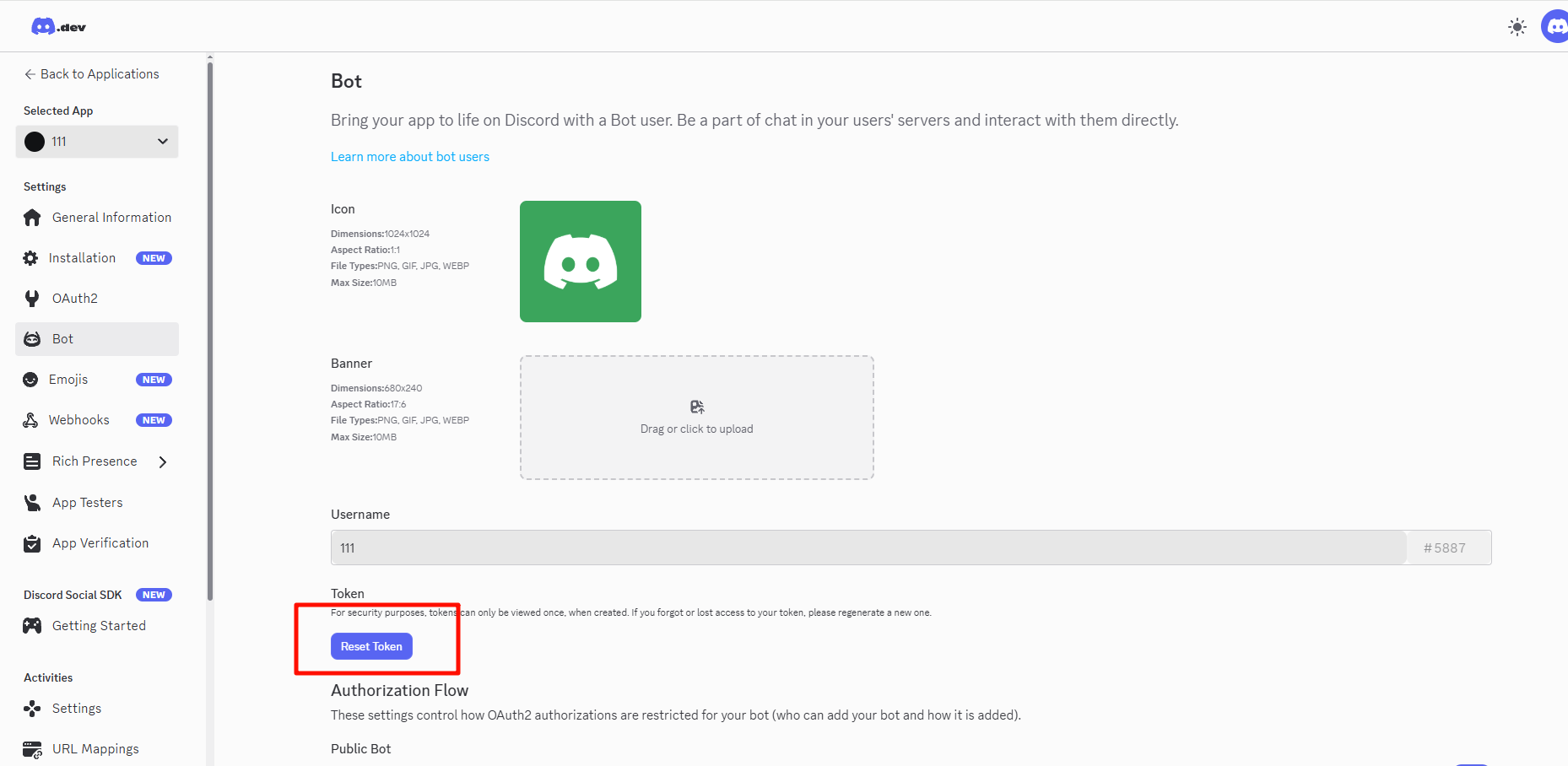
Security Warning: Bot Token is like a password, never share it with anyone. If compromised, reset it immediately.
1.2 Get Channel ID
- Open Discord client, go to User Settings → Advanced → Enable Developer Mode
- In the target server, right-click the channel you want to use for storage
- Select Copy Channel ID
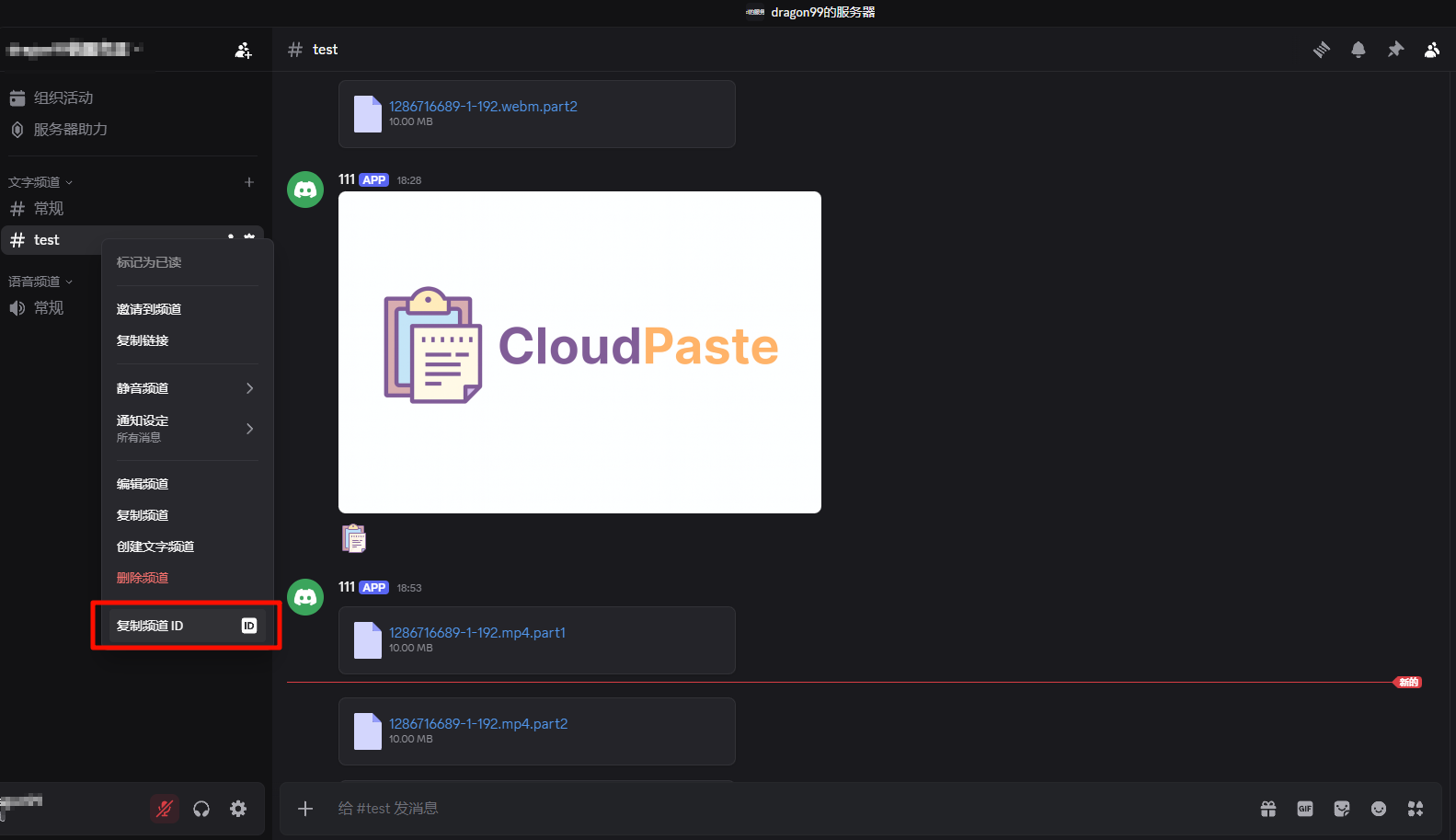
Channel ID is a pure number string, e.g., 1234567890123456789
Recommendation: Create a dedicated private channel for file storage to avoid mixing with regular chat.
1.3 Add Bot to Server
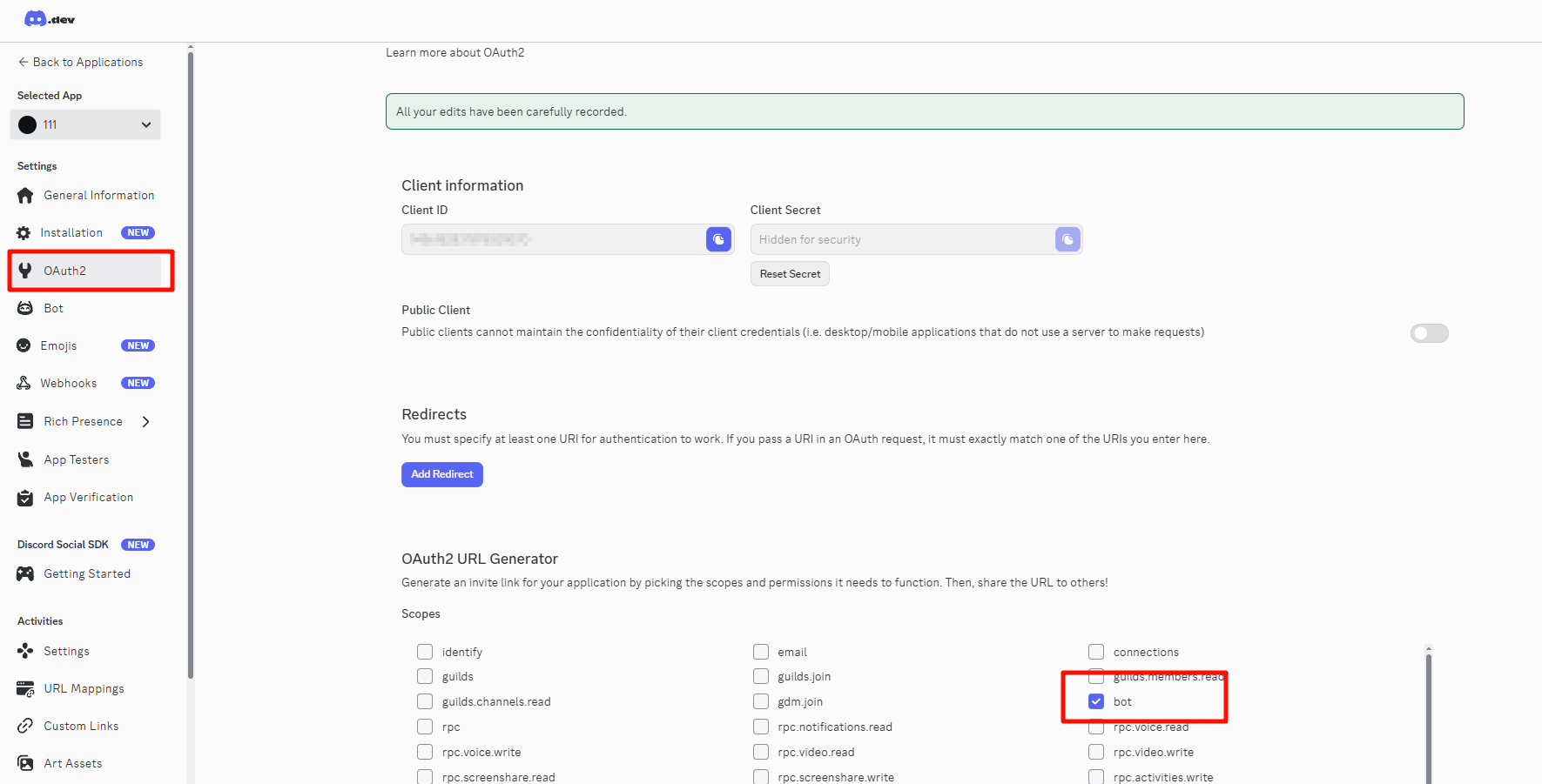
- In Discord Developer Portal, select OAuth2 → URL Generator
- In SCOPES, check
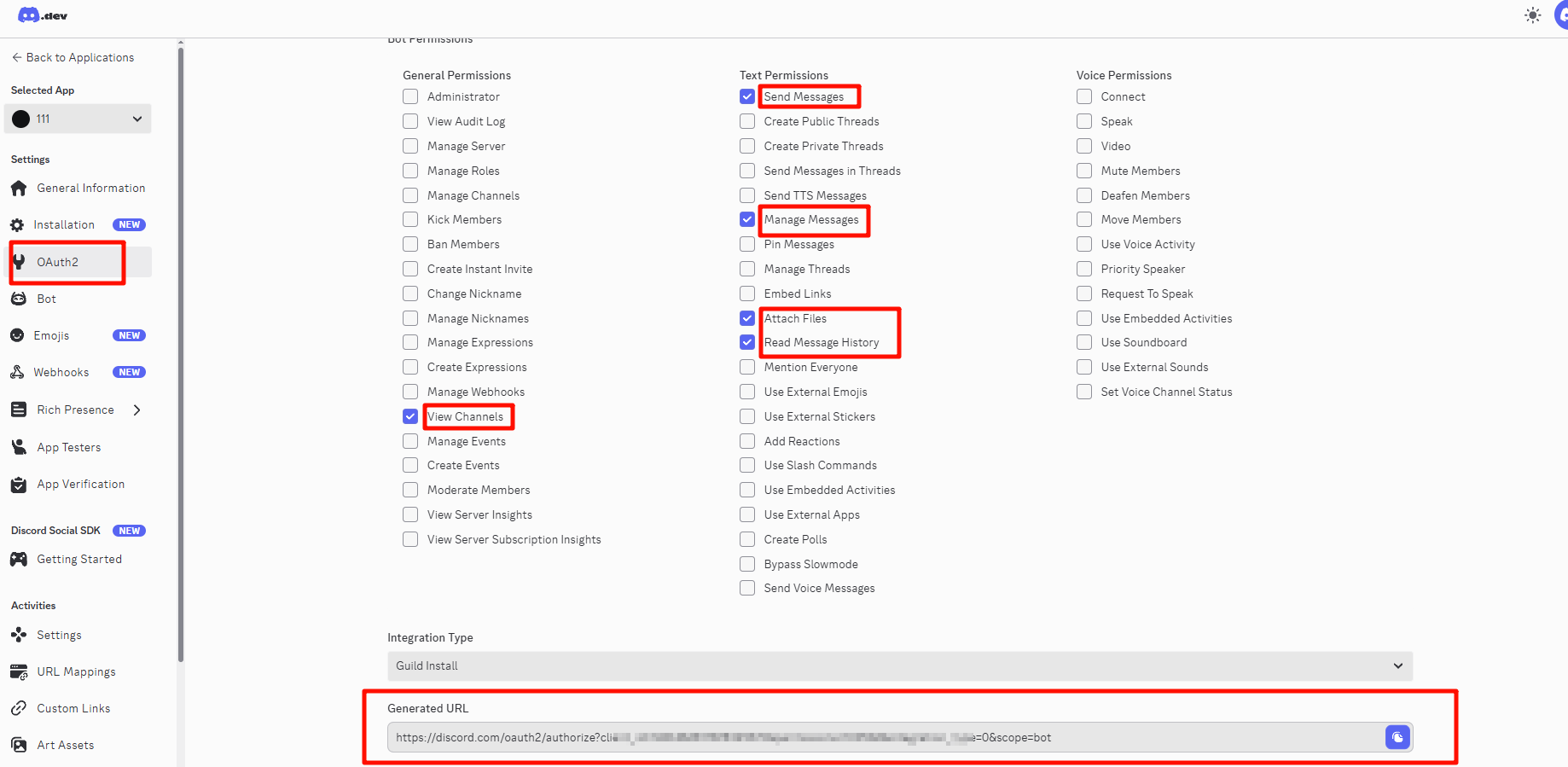
bot - In BOT PERMISSIONS, check:
View ChannelsSend MessagesAttach Files- ...
- Copy the generated URL, open in browser, select your server and authorize
2. Create Discord Storage Configuration
- Log in to CloudPaste admin → Storage Configuration
- Click "New Storage Configuration"
- Select Discord from the "Storage Type" dropdown
- Fill in configuration details (see field descriptions below)
- Click "Test Connection" to verify the configuration
- After saving, create a mount point for this storage in "Mount Management"
We recommend testing with small files first to confirm upload/download works before large-scale use.
3. Field Reference
3.1 Basic Information
Configuration Name Any memorable name, e.g., "Discord File Storage", "DC Backup Channel".
Storage Capacity Limit (optional)
- Only affects CloudPaste's quota calculation, doesn't actually limit Discord storage.
- Discord itself has no public storage capacity limit.
3.2 Discord Configuration
These are the core settings for Discord storage
Bot Token (bot_token) Required
- Bot Token obtained from Discord Developer Portal
- Format:
MTIzNDU2Nzg5.GhIjKl.MnOpQrStUvWxYz... - Encrypted in backend storage (AES-256-GCM)
Channel ID (channel_id) Required
- Target channel ID for file storage
- Must be pure numbers (Snowflake format), e.g.,
1234567890123456789
3.3 Advanced Configuration
Part Size (part_size_mb) (optional)
- Size of each chunk for multipart upload, in MB
- Default: 10 MB
- Note: Normal server max 10MB, Nitro server max 25MB
Upload Concurrency (upload_concurrency) (optional)
- Number of concurrent upload requests
- Default: 1
- Higher concurrency may trigger Discord API rate limiting (429 error)
URL Proxy (url_proxy) (optional)
- Proxy address to override Discord CDN domain
- Useful for regions with slow Discord CDN access
3.4 File Size Limits
| Server Type | Per Attachment Limit | Total File Size Limit |
|---|---|---|
| Normal Server | 10 MB | Unlimited (chunked) |
| Nitro Server | 25 MB | Unlimited (chunked) |
Multipart Upload: Files exceeding single attachment limit are automatically chunked, each chunk stored as a separate Discord message attachment.
4. How It Works
4.1 VFS Architecture
Discord has no "directory" concept, CloudPaste implements directory tree through VFS (Virtual Filesystem):
- Directory Tree: Managed by CloudPaste's
vfs_nodestable - File Content: Stored in Discord channel message attachments
- Index Association:
content_refrecords the mapping between files and Discord messages
CloudPaste VFS                    Discord
┌─────────────────┐              ┌─────────────────┐
│  /documents/    │              │                 │
│    ├── a.pdf    │──────────────│  Message #123   │
│    └── b.docx   │──────────────│  Message #124   │
│  /images/       │              │                 │
│    └── c.jpg    │──────────────│  Message #125   │
└─────────────────┘              └─────────────────┘
4.2 File Storage Format
Each file is recorded as a manifest in CloudPaste:
Single File (≤10MB):
{
  "kind": "discord_attachment_v1",
  "storage_type": "DISCORD",
  "channel_id": "1234567890123456789",
  "message_id": "9876543210",
  "attachment_id": "1111222233",
  "filename": "example.pdf",
  "size": 1048576
}
Chunked File (>10MB):
{
  "kind": "discord_chunks_v1",
  "storage_type": "DISCORD",
  "channel_id": "1234567890123456789",
  "file_name": "large_file.zip",
  "file_size": 52428800,
  "part_size": 10485760,
  "total_parts": 5,
  "parts": [
    { "partNo": 1, "message_id": "...", "attachment_id": "...", "size": 10485760 }
  ]
}
4.3 Multipart Upload Flow
# 1. Frontend creates upload session
POST /api/fs/multipart/init
→ Returns upload_session_id

# 2. Frontend uploads chunks
PUT /api/fs/multipart/upload-chunk
Header: Content-Range: bytes 0-10485759/52428800
→ Backend forwards to Discord, saves message_id to upload_parts

# 3. Complete upload
POST /api/fs/multipart/complete
→ Aggregates all chunk metadata into Manifest
4.4 Manifest Structure
Each file's complete information is stored in a Manifest:
{
  "kind": "discord_chunks_v1",
  "storage_type": "DISCORD",
  "channel_id": "1234567890123456789",
  "file_name": "example.zip",
  "file_size": 52428800,
  "part_size": 10485760,
  "total_parts": 5,
  "parts": [
    {
      "part_number": 1,
      "message_id": "1234567890123456790",
      "attachment_id": "1234567890123456791",
      "cdn_url": "https://cdn.discordapp.com/attachments/...",
      "size": 10485760
    }
  ]
}
4.5 Security Mechanisms
| Mechanism | Implementation | Description |
|---|---|---|
| Token Encryption | AES-256-GCM | Bot Token encrypted in database |
| Session Validation | assertUploadSessionOwnedByUser | Dual verification (user_id + user_type) prevents hijacking |
| User ID Normalization | normalizeUploadSessionUserId | Unified user identification format |
4.6 Download Flow
- Find index node by VFS path
- Parse manifest to get Discord attachment info
- Call Discord API to get latest download URL (CDN URLs expire)
- Concatenate chunks in order and return file stream
Range Request Support: Discord storage supports HTTP Range requests for video seeking.
5. Mount & Permissions
After saving Discord storage configuration, create a mount point in "Mount Management":
- Go to Mount Management → New Mount
- Select the Discord storage configuration
- Enter mount path (e.g.,
/discord), notes, etc. - Configure options as needed:
- Web Proxy: Discord must use proxy, keep this enabled
- Enable Signature: Whether to enable signature protection for proxy endpoints
The Discord storage configuration also has an Allow API Key Usage (is_public) option:
- When enabled, API keys can use this storage within their mount path scope
- Combined with API key's basic_path and mount path for precise access control
For detailed mounting and permissions, see:
6. Troubleshooting
6.1 Connection Test Failed: Invalid bot_token
Error message:
Discord test failed: bot_token invalid or inaccessible
Possible causes:
- Token entered incorrectly or contains extra spaces
- Bot has been deleted or disabled
Solutions:
- Check if Token format is correct
- Confirm Bot status in Discord Developer Portal
- If necessary, recreate Bot or reset Token
6.2 Connection Test Failed: channel_id Inaccessible
Error message:
bot_token is valid, but channel_id is inaccessible
Possible causes:
- Bot is not in the target server
- Bot doesn't have permission to access the channel
- Channel ID format is incorrect
Solutions:
- Confirm Bot has been added to the server
- Confirm Bot has "View Channels", "Send Messages", "Attach Files" permissions
- Check if Channel ID is pure numbers
6.3 Upload Failed: File Too Large
Error message:
DISCORD single upload too large: normal upload only supports ≤10MB
Solutions:
- Use multipart upload: Upload through "Mount Browser", it auto-chunks
- Compress file: Compress large files before uploading
- Nitro server: If server has Nitro boost, set
part_size_mbto 25
6.4 Download Link Expired
Explanation: Discord CDN URLs automatically expire after ~24 hours.
Solutions:
- CloudPaste auto-refreshes expired URLs, no manual action needed
- If still inaccessible, check if Bot Token is valid
6.5 Discord Still Has Messages After Deleting Files
Explanation: This is by design. CloudPaste only deletes its own index, does not delete Discord messages.
Reasons:
- Deleting messages requires additional Bot permissions and API calls
- Keeping messages serves as backup
- Prevents accidental data loss
For complete deletion: Manually delete corresponding messages in Discord channel.
6.6 Frequent 429 Errors (Rate Limiting)
Possible causes:
- Upload concurrency too high
- Too many requests in short time
Solutions:
- Lower
upload_concurrency(recommend setting to 1) - Avoid simultaneous bulk file operations
- Wait a few minutes before retrying
6.7 Using Custom Proxy
Use case: Discord CDN is slow in some regions, use self-hosted proxy for acceleration.
Configuration:
{
  "url_proxy": "https://your-proxy-domain.com"
}Note: Proxy server needs to forward requests to cdn.discordapp.com.
6.8 Normal Server vs Nitro Server
| Comparison | Normal Server | Nitro Server |
|---|---|---|
| Attachment Size | 10 MB | 25 MB |
| Recommended part_size_mb | 8-10 | 10-25 |
| Upload Speed | Slower (more chunks) | Faster (fewer chunks) |
How to identify server type: Check if server owner has Discord Nitro subscription in server settings.
6.9 Data Backup
Option 1: Export Database
# Backup vfs_nodes and upload_sessions tables
mysqldump -u user -p database vfs_nodes upload_sessions > backup.sql
Option 2: Preserve Discord Channel
- Discord messages are permanently stored (unless manually deleted)
- Even if CloudPaste database is lost, files can be recovered from channel messages
7. API Rate Limits
Discord API uses a dynamic rate limiting mechanism:
- Global Rate Limit: Max 50 requests/second per Bot Token
- Endpoint Rate Limits: Different API endpoints have their own limits, returned via
X-RateLimit-*response headers - Resource-Level Limits: Calculated independently per
channel_id,guild_id, etc.
Important: Discord official documentation explicitly states that rate limits should not be hardcoded, and should be handled dynamically by parsing response headers. CloudPaste has built-in complete 429 error handling and automatic retry mechanisms.
CloudPaste's Handling:
- On 429 errors, automatically parses
retry_after/Retry-After/X-RateLimit-Reset-Afterand waits before retrying - Controls concurrent requests via
upload_concurrencyparameter (default: 1) - Maximum 3 automatic retries to avoid infinite loops
Recommendation: Keep default concurrency at 1 to avoid frequent rate limiting.