
OneDrive Storage Configuration
CloudPaste supports Microsoft OneDrive as a storage backend, implementing file operations based on Microsoft Graph API.
Supported Features
The OneDrive storage driver supports the following capabilities:
- ✅ READER: Read files and directories
- ✅ WRITER: Upload, create, rename, and delete files
- ✅ ATOMIC: Atomic operation support (rename, copy, batch delete)
- ✅ PROXY: Proxy access
- ✅ DIRECT_LINK: Direct download links (via Microsoft Graph API)
- ✅ MULTIPART: Chunked upload (resumable upload)
- ✅ PAGED_LIST: Paginated directory listing
1. Preparation
1.0 Follow OpenList Configuration Documentation (Recommended)
👉 https://doc.oplist.org/guide/drivers/onedrive
Click to expand: Skip this step if following OpenList
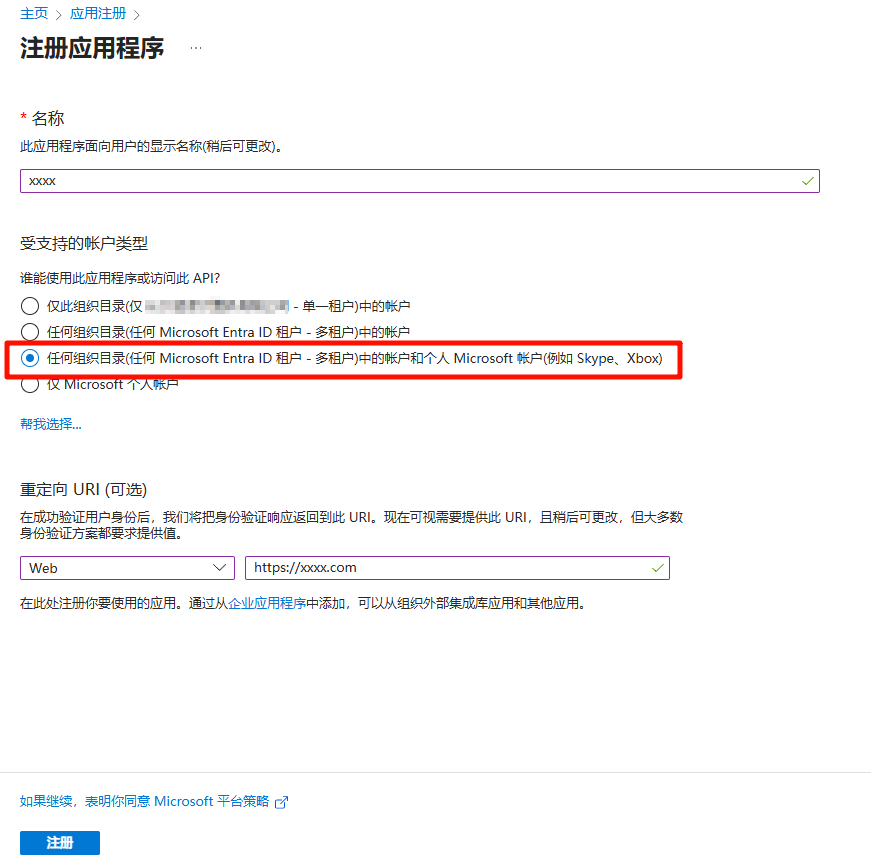
1.1 Register Azure Application
- Visit Azure Portal
- Go to Azure Active Directory → App registrations
- Click "New registration"
- Fill in application information:
- Name: e.g.,
CloudPaste OneDrive - Supported account types: Select "Accounts in any organizational directory and personal Microsoft accounts"
- Redirect URI: Select "Web", enter
your callback address
- Name: e.g.,
1.2 Configure API Permissions
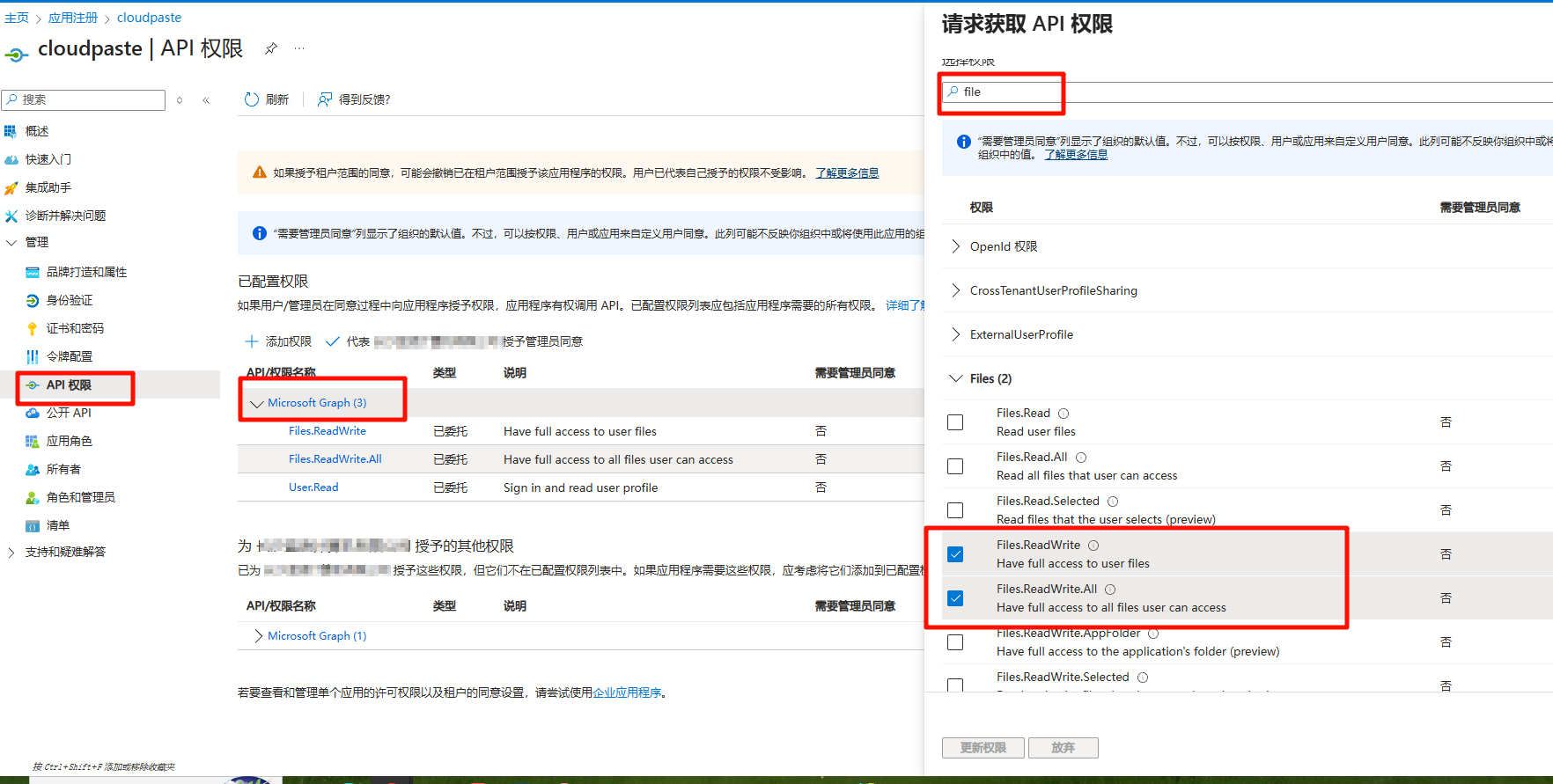
- Go to application details page → API permissions
- Click "Add a permission" → Select "Microsoft Graph"
- Select "Delegated permissions", add the following permissions:
Files.ReadWriteFiles.ReadWrite.All
- Click "Grant admin consent" (if using organizational account)
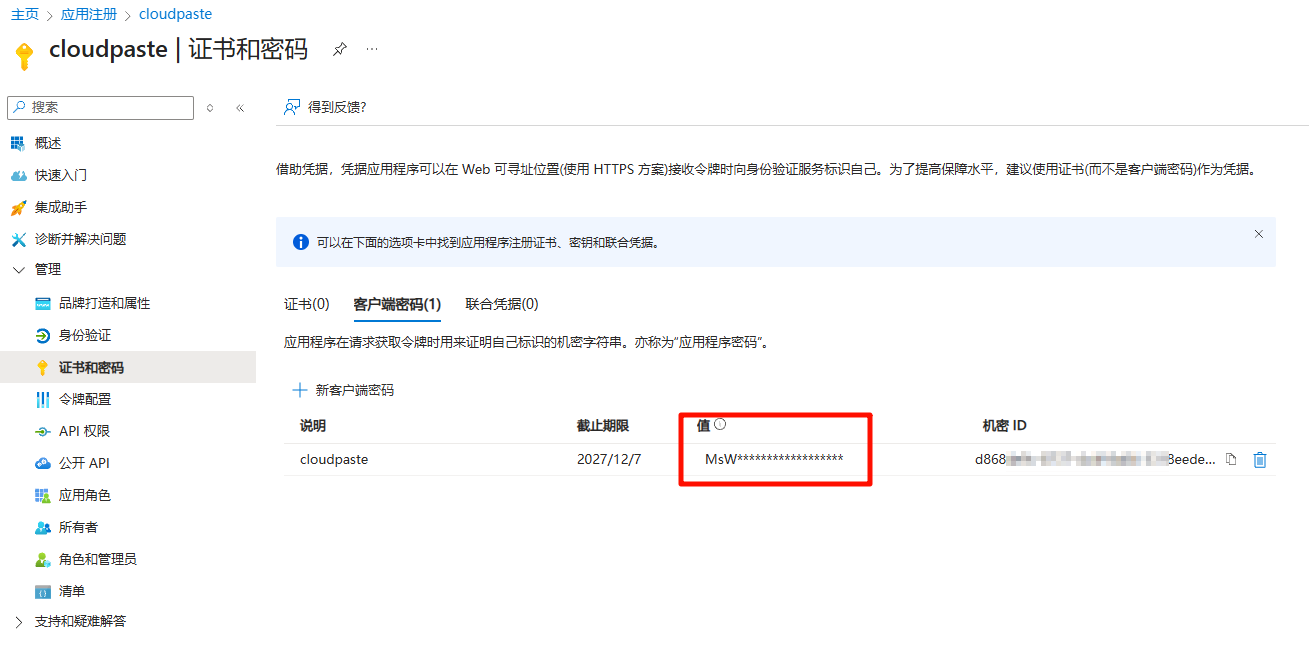
1.3 Create Client Secret
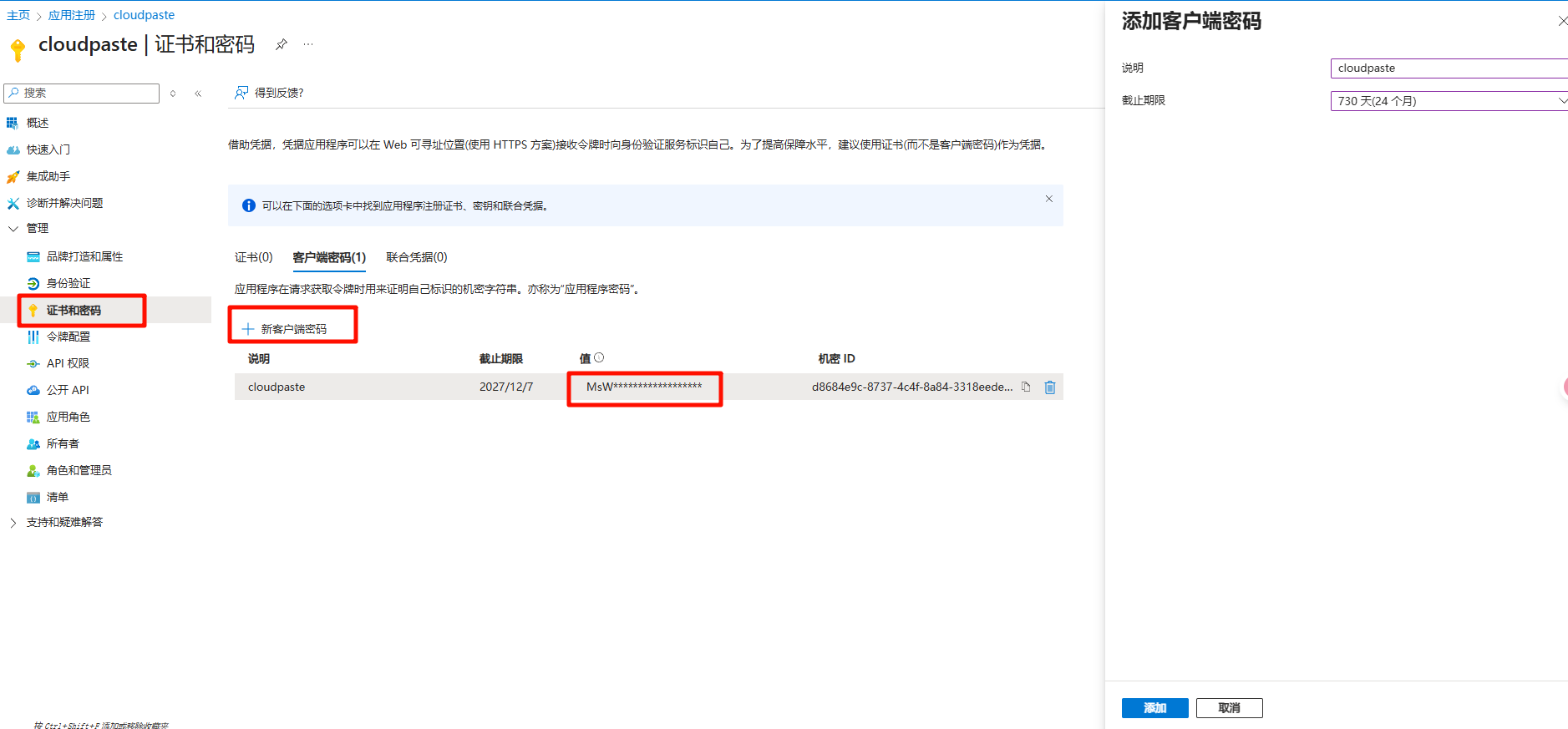
- Go to application details page → Certificates & secrets
- Click "New client secret"
- Fill in description and expiration time
- Copy the secret value immediately (cannot be viewed again after leaving the page)
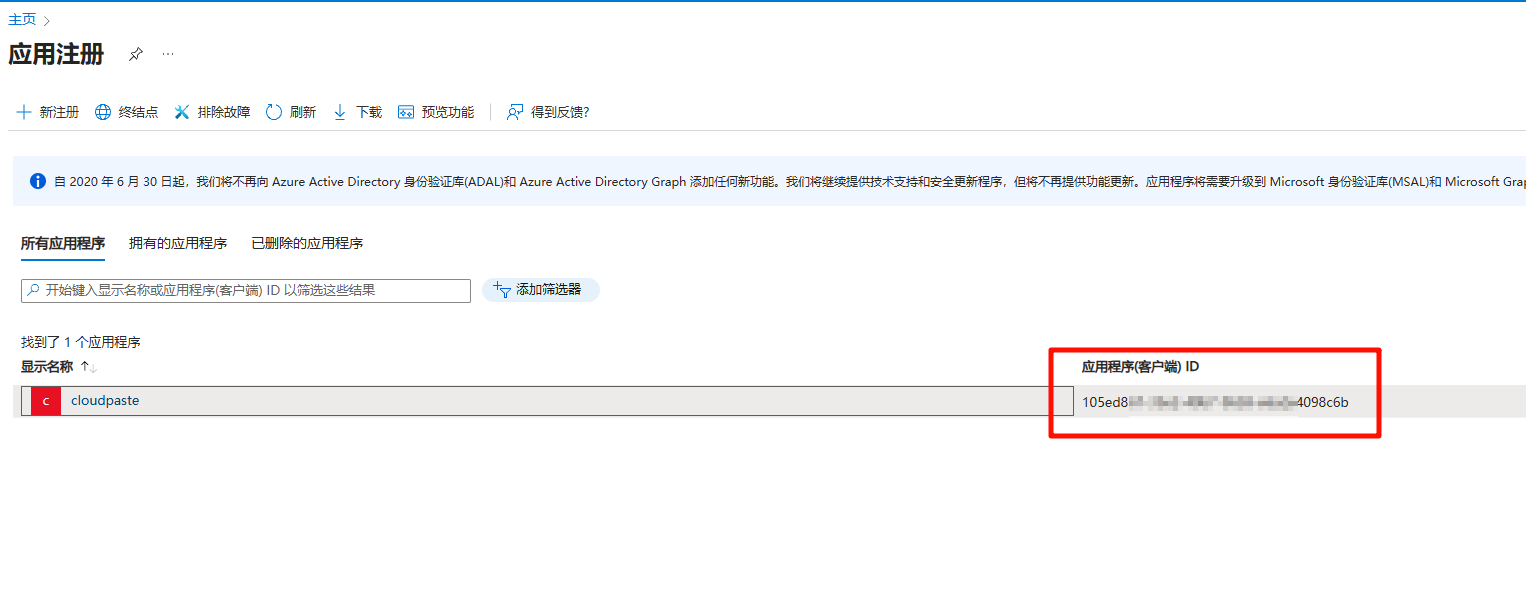
1.4 Get Application Information
Record from the "Overview" section of the application details page:
- Application (client) ID: This is your
client_id - Client secret value: This is your
client_secret(created in previous step)
1.5 Get Refresh Token
Using Third-party Tools
You can use third-party tools like OneDrive Token Tool to simplify the process.
2. Create OneDrive Storage Configuration
- Log in to CloudPaste admin panel → Storage Configuration
- Click "Create Storage Configuration"
- Select OneDrive from the "Storage Type" dropdown
- Fill in configuration information (see below)
- After saving, create a mount point for this storage in "Mount Management"
3. Field Descriptions
3.1 Basic Information
Configuration Name
Any recognizable name, e.g., "Personal OneDrive", "Team OneDrive"Storage Capacity Limit (Optional)
- Only affects CloudPaste's own quota calculation
- Triggers CloudPaste's quota warning when exceeded
3.2 Authentication Configuration
These fields determine how CloudPaste connects to your OneDrive
Region (region)
- Options:
global: Global version (default)cn: China version (21Vianet)us: US Government versionde: Germany version
- Different regions use different OAuth and Graph API endpoints
- Options:
Client ID (client_id) Required
- Azure application's "Application (client) ID"
- Example:
12345678-1234-1234-1234-123456789012
Client Secret (client_secret) Required
- Azure application's client secret value
- Encrypted and stored on the backend
- When editing configuration, leaving password empty = keep existing password
Refresh Token (refresh_token) Required
- OAuth 2.0 refresh token
- Used to automatically obtain and refresh access tokens
- Encrypted and stored on the backend
Redirect URI (redirect_uri) (Optional)
- Redirect address used during OAuth authorization
- Must match the redirect URI configured in Azure application
- Example:
http://localhostorhttps://your-domain.com/callback
3.3 Advanced Configuration
Token Renewal Endpoint (token_renew_endpoint) (Optional)
- Custom token refresh service URL
- If not filled, will use Microsoft's official OAuth endpoint directly
- Use case: Using third-party token management services (like OneDrive Online API)
Use Online API (use_online_api) (Optional)
- When checked, will use Online API protocol to call token renewal endpoint
- Only effective when
token_renew_endpointis configured
Default Upload Path (default_folder) (Optional)
- Subdirectory relative to OneDrive root directory
- Format: Do not start with
/, e.g.:cloudpaste/cloudpaste/files
- Empty means use root directory directly
Proxy URL (url_proxy) (Optional)
- Specify unified proxy entry domain for OneDrive storage
- Example:
https://proxy.example.com - Used in conjunction with mount proxy strategy
5. Mount and Permission Configuration
After saving OneDrive storage configuration, you need to create a mount point in "Mount Management":
- Go to Mount Management → Create Mount
- Select the OneDrive storage configuration
- Fill in mount path (e.g.,
/onedrive), notes, etc. - Enable as needed:
- Web Proxy: Whether to force web scenarios through CloudPaste proxy
- Enable Signature: Whether to sign protect
/api/p/ proxy entry - Direct Link Strategy:
native_direct/proxy/use_proxy_url
Additionally, OneDrive storage configuration has an Allow API Key Usage (is_public) option:
- When checked, API keys can use this storage within their "mount path" scope
- Combined with API key's basic_path and mount path, can precisely limit access scope
For detailed mount and permission instructions, refer to:
6. Common Issues
6.1 Connection Failed / Cannot Get Access Token
Possible Causes:
- Incorrect
client_idorclient_secret refresh_tokenexpired or invalid- Azure application permissions not configured correctly
- Wrong region selection (e.g., China version should select
cn)
Solutions:
- Check if Azure application configuration is correct
- Re-obtain refresh_token
- Confirm API permissions are granted and consented
- Check if region setting matches
6.2 Upload Failed or Very Slow
Possible Causes:
- High network latency
- OneDrive API rate limiting
- File too large
Solutions:
- Check network connection between CloudPaste and OneDrive
- Use chunked upload for large files
- If rate limited, retry later
6.3 Refresh Token Expired
Symptoms:
- Prompt "Cannot get access token"
- Log shows "invalid_grant" error
Solutions:
- Refresh token may expire due to long-term non-use
- Re-execute authorization flow to get new refresh_token
- Update storage configuration in CloudPaste
6.4 File Download Behavior Not as Expected
Check Items:
- Verify mount's direct link strategy is
native_direct/proxy/use_proxy_url - If Proxy URL is enabled, confirm proxy service deployment and configuration are correct
- OneDrive's downloadUrl is valid for about 1 hour, will auto-refresh after expiration